How to Use a Minecraft Seed Map (Java & Bedrock)
By
Minecraft Search
|
8 min read
|
Updated on
September 8, 2026
Written with AI assistance.
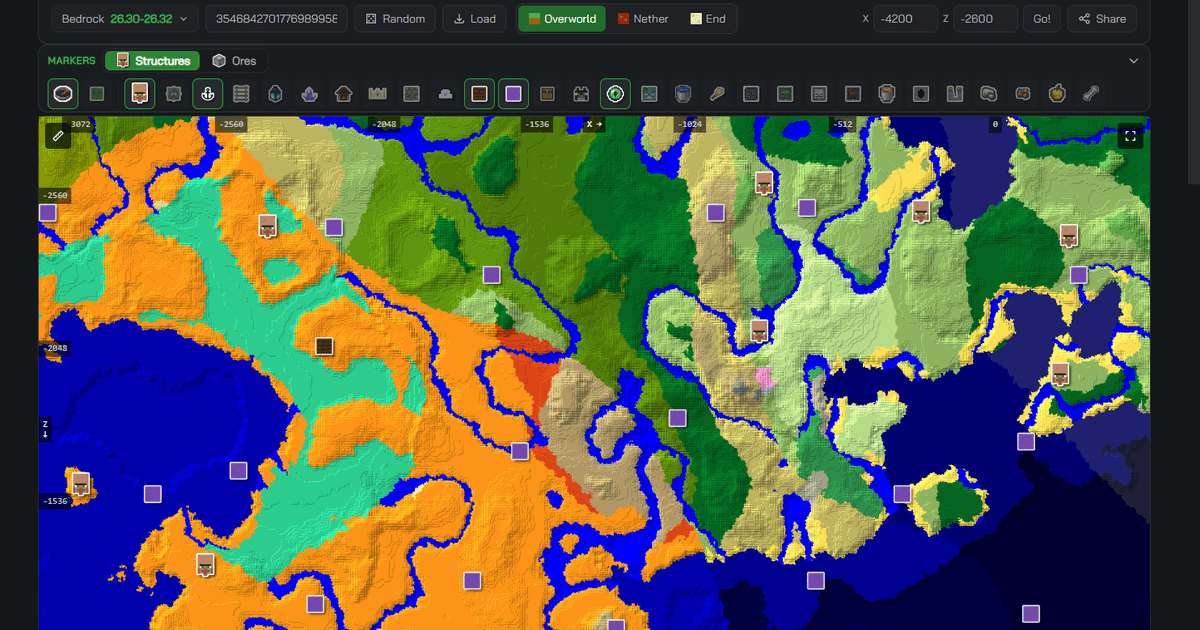
TL;DR: How to use a Minecraft seed map
- ✅ A seed map is a free online world previewer: type in your world seed, pick your edition and version, and it draws the biomes, structures, slime chunks and spawn before you ever load the world in-game.
- ✅ The core loop: enter the seed → choose Java or Bedrock → pick the exact version → pick the dimension → toggle the structures and biomes you're hunting → click any marker for its coordinates.
- ✅ Match the edition first. For the same seed, Java and Bedrock place structures, slime chunks and spawn differently — so a Java seed read on a Bedrock map puts every structure marker in the wrong spot.
- ✅ Do it now on our free Minecraft Seed Map — Java and Bedrock, current to 26.2 / 1.26.45, nothing to install.
Learning how to use a Minecraft seed map takes about a minute, and it saves hours of blind exploring. A seed map turns your world's seed into a live, zoomable map: you can see where the villages, strongholds and ancient cities are, hunt down a rare biome, or check whether your base sits on a slime chunk — all before you place a single block. This guide walks through it step by step for both Java and Bedrock, using the newest game versions.
What is a Minecraft seed map?
A Minecraft seed map is an online tool that previews an entire world from just its seed, without loading the world in the game. Because Minecraft's terrain is deterministic — the same seed always generates the same world — a seed map can reproduce that world's biomes and structures in your browser and show them on a top-down map you can pan and zoom.
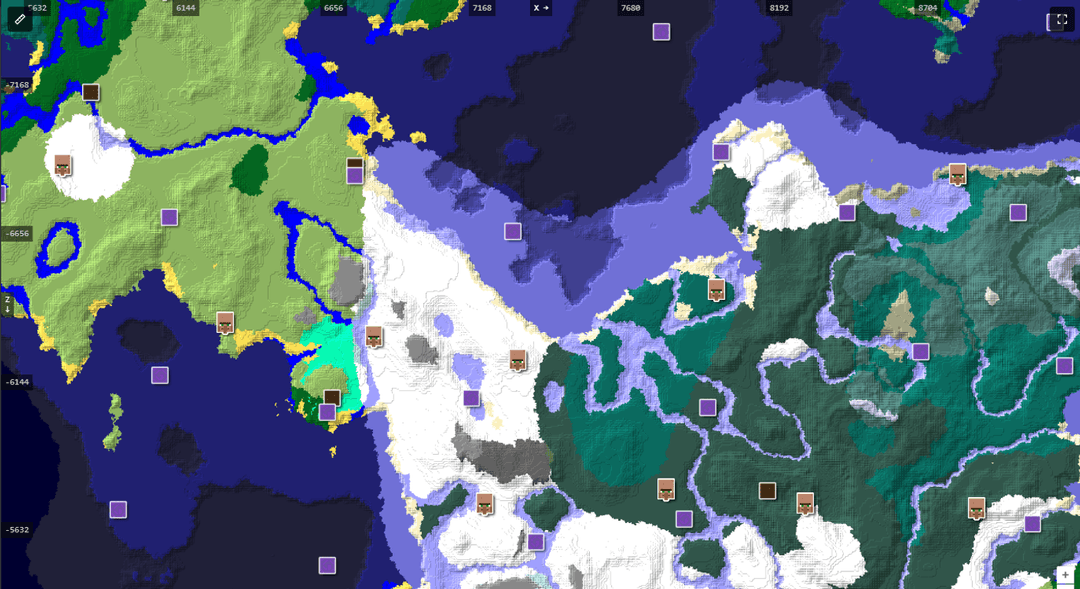
On our seed map, a single seed reveals:
- Biomes — every region, colour-coded, with optional terrain shading that brings out the relief. The colours stay biome colours; the shading does not move the coastline.
- Structures — villages, strongholds, ancient cities, ocean monuments, trial chambers, pillager outposts and more, each dropped as a marker.
- Slime chunks — the chunks where slimes spawn underground, for planning a slime farm.
- World spawn — where a fresh player first appears.
- All three dimensions — the Overworld, the Nether and the End, at the same coordinates.
How do I find my world's seed?
In Java single-player, open the chat and run the command /seed — it prints your world's seed straight away. On Bedrock, open the Edit World screen and scroll to the Advanced section, where the seed is shown with a copy button (Realms worlds don't expose it). On a multiplayer server you need operator permissions or direct access to the save files, because the seed is normally hidden from regular players.
No seed yet?
You don't need an existing world. Type any number or word as a seed, or use the random button on the map, to preview a brand-new world before you create it — a fast way to seed-hunt for a good spawn.
How to use a seed map, step by step
Enter your seed in the toolbar, pick the matching edition and version, then toggle on whatever you want to see — the map redraws instantly after every change. Here is the full sequence:
- Open the map. Go to the Minecraft Seed Map — it runs entirely in your browser, so there's nothing to download.
- Enter your seed in the seed box at the top. Paste an exact number, type a word, or hit the random button. (You can also load a Java level.dat file to auto-fill the seed and version.)
- Choose the edition: Java, Large Biomes, or Bedrock. This is the most important step — get it wrong and nothing lines up.
- Pick the exact version (for example 26.2 on Java, or the 26.30-26.45 entry on Bedrock — one row covers several releases that generate identically). Worldgen changes between major versions, so match the version your world was created in.
- Choose the dimension — Overworld, Nether or End. Switching dimensions keeps the same coordinates, so you can line up a Nether route with the Overworld.
- Toggle the structures and biomes you care about from the strip below the map (or the sidebar in fullscreen): enable Villages, Strongholds, Ancient Cities, and so on, or highlight a specific biome to fade out everything else.
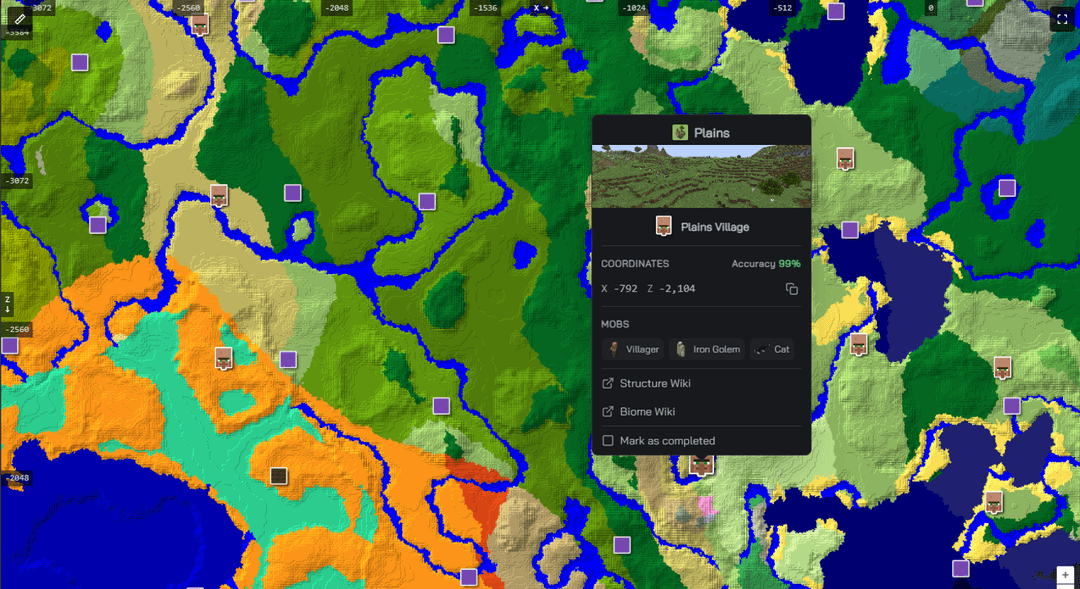
- Click any marker to see its type and exact coordinates; right-click (or tap-and-hold on mobile) to drop your own named marker.
- Share or save. The URL encodes the seed, dimension, coordinates and zoom, so you can send a friend the exact view — and the map remembers where you left off next time.
Panning and zooming work the way you'd expect: drag to pan, scroll to zoom, double-click to zoom in on a point. On a keyboard, the arrow keys pan, + / − zoom, and F toggles fullscreen. On a phone, drag to pan and pinch to zoom.
Do Java and Bedrock seeds work the same?
No — and this trips up more people than anything else. Java and Bedrock are separate world generators: for a given seed they produce broadly similar terrain and biomes (since the 1.18 update), but structures, slime chunks and the world spawn are placed differently. Always select the matching edition before you read the map, or every structure marker will be in the wrong place. A few other differences matter too:
| Aspect | Java Edition | Bedrock Edition | Why it matters |
|---|---|---|---|
| Same seed, same layout? | Terrain & biomes broadly shared | Same terrain/biomes, but structures placed differently | Pick the edition that matches your world, or structure markers land in the wrong place |
| Find your seed | Run /seed in chat | Edit World screen → Advanced | You need cheats or operator access to see it |
| Biome names | Modern names (Badlands, Windswept Hills, Dark Forest) | Legacy names (Mesa, Extreme Hills, Roofed Forest) | The map switches labels automatically when you choose the edition |
| Latest version supported | 26.2 | 1.26.45 | Both include the new Sulfur Caves cave biome |
| Structure preview | Villages, strongholds, ancient cities, trial chambers, monuments | Same set, Bedrock-calibrated placement | A few Bedrock in-game checks (like end cities) can still differ |
How do I find a specific structure or biome?
Turn on just the thing you're looking for and let the map mark every occurrence. The most common jobs map straight to a control:
- Find a stronghold (for the End portal): enable Strongholds in the structures strip — the map marks all of them; click one for its coordinates.
- Hunt a rare biome (cherry grove, mushroom fields, the deep dark): use biome highlighting to pick the biome and fade everything else out.
- Plan a slime farm: switch on the slime-chunks overlay to see which chunks slimes spawn in below Y=40 (these depend on your seed on Java; on Bedrock they're the same in every world).
- Locate your spawn: enable the world-spawn marker to see where a new player lands.
- Scout the Nether: change the dimension to Nether to find fortresses and bastions at the same coordinates.
If you only care about one kind of thing, our dedicated finders are faster: the Structure Finder lists every structure of a type with coordinates, the Biome Finder highlights a single biome across the whole seed, and the Ore Finder marks diamonds, netherite and other ores.
How accurate is a seed map?
Biomes and major structures are computed with the same world-generation algorithms the game itself uses, so for a supported version they are highly accurate — the tool even shows a per-structure accuracy figure on the marker popup. A few things depend on in-game checks that a preview can't fully replicate (dungeons, Bedrock end cities and a handful of newer features), so treat those as strong hints rather than guarantees.
One common surprise: the coloured map shows biomes, not the water level, so coastlines won't trace your in-game shoreline precisely — terrain that drops below sea level inside a land biome still shows in its land colour, so a bay or lake can appear green. Turn on the terrain option to shade the relief and make those low areas easier to spot; it won't repaint them as water.
Pro tip
If the map looks wrong, it's almost always the edition or version. Double-check both match your world exactly before assuming the seed is off — a single wrong version can shift structures by hundreds of blocks.
Reading about it is slower than doing it. Our Minecraft Seed Map previews any seed — biomes, structures, slime chunks and spawn across the Overworld, Nether and End — for both Java and Bedrock, current to 26.2 / 1.26.45.
Open the Seed Map →Frequently Asked Questions (FAQ)
Q: Is using a seed map cheating?
A: It depends on how you play. For single-player exploration or finding a biome for a build, most players consider it fair. On multiplayer servers, check the rules first — some servers don't allow seed-based tools.
Q: Do I need to download anything to use a seed map?
A: No. Our seed map runs entirely in your browser using WebAssembly, and the world is calculated on your own device, so no seed information ever leaves your computer. There's nothing to install.
Q: Can I use a seed map on a phone?
A: Yes. The map is touch-friendly: drag to pan, pinch to zoom, tap a marker for details, and tap-and-hold to drop your own marker.
Q: Why doesn't the seed map match my world exactly?
A: Almost always because the edition or version doesn't match. Confirm you picked the same edition (Java or Bedrock) and the exact version your world was made in. Also remember the map colours show biomes, not precise terrain, so coastlines can differ.
Q: Can I find the seed of a multiplayer server?
A: Only if you have operator permission to run /seed, or access to the server's save files. Servers hide the seed from regular players by default, so there's no way to read it from the client alone.